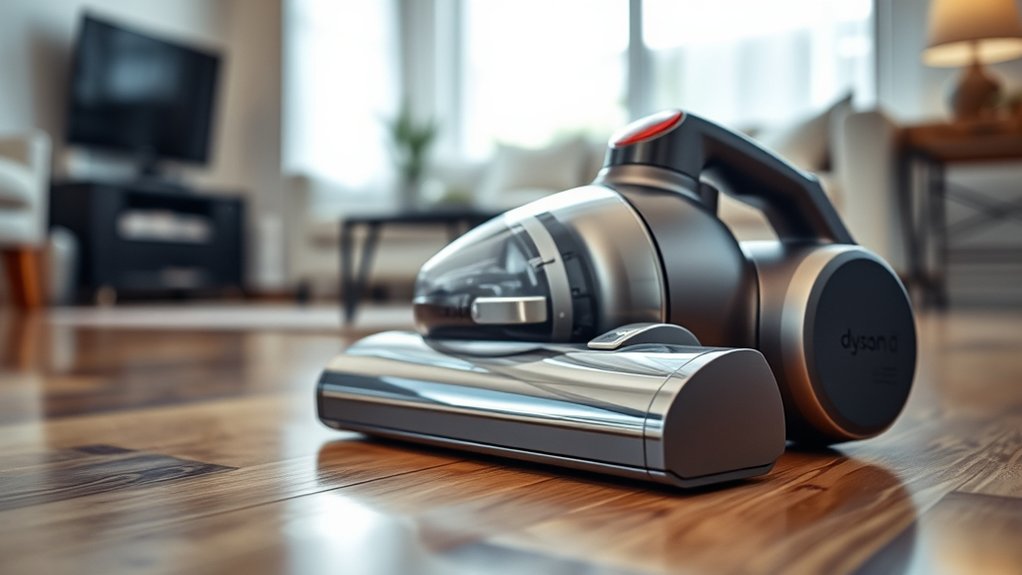
How to Tell Which Dyson Vacuum I Have in 7 Simple Steps
To tell which Dyson vacuum you have, start by locating the model number on the dust bin, handle, or vacuum body. Identifying your Dyson vacuum model is essential for finding the right parts, accessories, and support. Check for labels on these parts for model and serial details.
Look inside the dust bin or filter area if needed. Notice design features like color and dust bin shape to help narrow it down. Use Dyson’s website and compare attachments for accuracy.
Confirm your model for parts or support. Keep exploring to uncover more helpful identification tips. Knowing your exact Dyson vacuum model ensures you get the best performance and service.
Key Takeaways
- Locate the model number on the dust bin, cyclone, or vacuum body for quick identification.
- Check labels near the handle, filter area, or under the dust bin cover for model and serial details.
- Examine design features like vacuum style, colors, dust bin shape, and release mechanisms for visual clues.
- Remove the dust bin or inspect filter compartments to find hidden model number labels.
- Use Dyson’s website or support tools to confirm your model using serial numbers or accessory types.
Find the Model Number on Your Dyson Vacuum
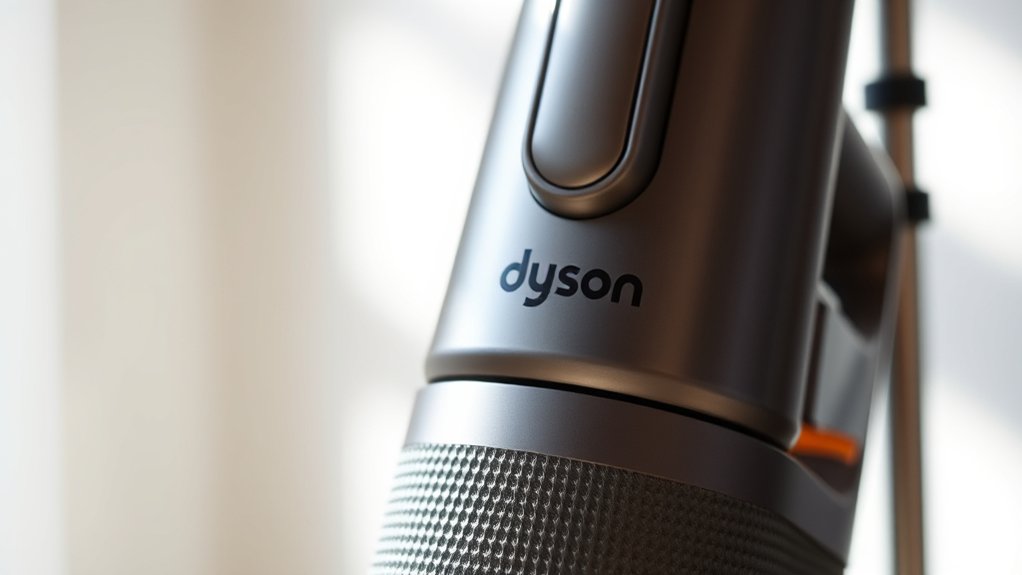
To identify your Dyson vacuum model, start by locating the model number on the device itself. Typically, Dyson places this number on a sticker or plate somewhere on the vacuum. You’ll often find it on the main body, near the handle, or close to the dust bin but avoid checking the bin’s labels for now.
Look for a combination of letters and numbers that clearly stands out as the model identifier. Sometimes, it’s printed on the back or bottom of the vacuum. If you struggle to spot it, try flipping the vacuum gently or shining a light on less visible areas.
Once you find the model number, you can use it to search for specific parts, manuals, or support tailored to your Dyson vacuum.
Check Labels on the Vacuum Body or Dust Bin
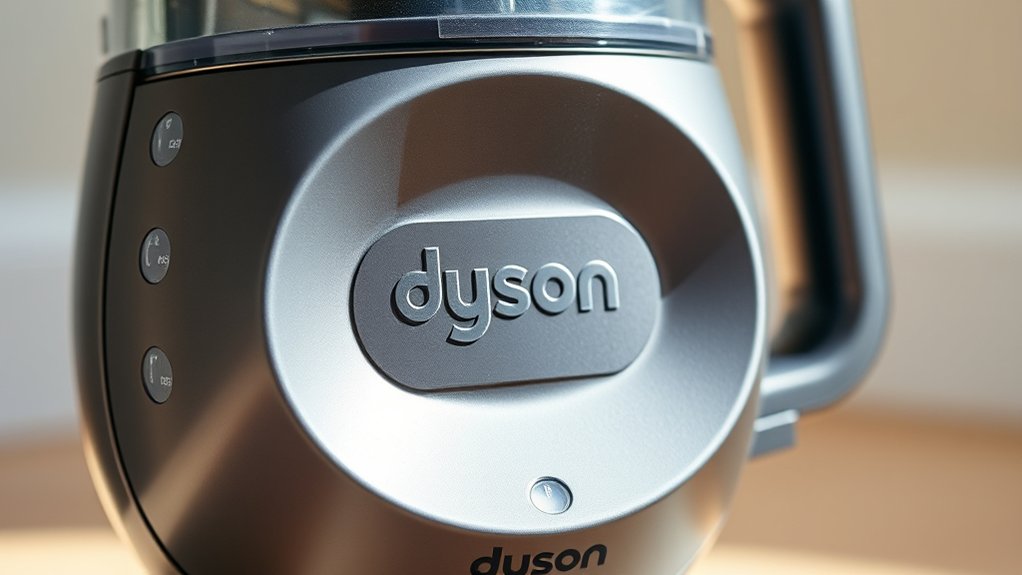
Take a close look at the labels on your vacuum’s body or dust bin to find the model number and serial code. These labels often include important manufacturing details that help identify your Dyson vacuum.
Make sure you note down any numbers or codes you see for easy reference.
Locate Model Number
Where can you find your Dyson vacuum’s model number? It’s usually printed on a label attached to the vacuum itself or its dust bin. To locate it, follow these simple steps:
- Check the vacuum body: Look near the base or the back of the vacuum. The label is often placed on a flat surface for easy reading.
- Inspect the dust bin: Remove the dust bin and look around its edges or bottom. Dyson sometimes places the model number here for quick access.
- Examine the wand or handle: Occasionally, the model number appears on the wand or handle, especially on cordless models.
Once you spot the label, the model number usually starts with letters followed by numbers, like “DC59” or “V11.” Keep this info handy for reference or support.
Identify Serial Code
After locating your Dyson vacuum’s model number, the next step is to find the serial code, which also appears on labels attached to the vacuum body or dust bin. Check the main body of the vacuum near the handle or on the underside, as Dyson often places the serial code there.
If you don’t spot it, look carefully on the dust bin itself—there’s usually a sticker or plate with several details, including the serial code. The serial code is a unique alphanumeric sequence that helps identify your specific unit, useful for warranty or repair inquiries.
Make sure to write it down exactly as it appears, including any letters and numbers. This step confirms your vacuum’s identity for accurate support or replacement parts.
Check Manufacturing Labels
Wondering how to confirm your Dyson vacuum’s details? The manufacturing labels on your vacuum are a great place to start. These labels often contain key information like the model number, serial number, and manufacturing date.
Here’s how to check them:
- Look on the main vacuum body, usually near the handle or bottom.
- Inspect the dust bin or dirt container—Dyson often places labels there for easy access.
- Use a flashlight if needed to spot small or faint labels.
Once you find the label, note the model number—it typically starts with letters followed by numbers. This info helps you identify your vacuum quickly, especially if you’re searching for parts or troubleshooting. Checking these labels is a simple, reliable way to know exactly which Dyson you own.
Look Inside the Dust Bin or Filter Area for Model Info
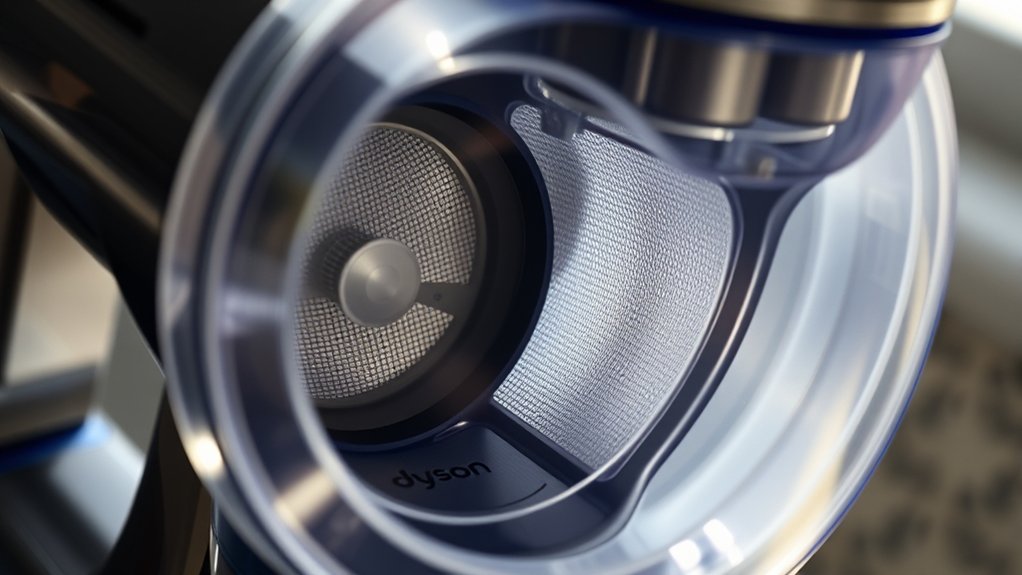
You can often find the model number inside the dust bin or near the filter area.
Look closely for a sticker or engraving with details like the model and serial number.
This info helps you identify your Dyson vacuum accurately.
Locating Model Number
Where can you find your Dyson vacuum’s model number? It’s usually right where you might not expect—inside the dust bin or near the filter area.
Here’s how to locate it quickly:
- Remove the dust bin from your vacuum. Look on the inside or the base of the bin for a small label or printed code.
- Check around the filter compartment. Some models have the number printed on a sticker inside the filter housing.
- Use a flashlight if needed to spot the label clearly. The model number is a combination of letters and numbers.
Understanding Label Details
Although finding the model number inside the dust bin or filter area might seem tricky, the label holds essential details that identify your Dyson vacuum precisely. Once you locate this label, you’ll see the model number, serial number, and sometimes the production date.
The model number typically starts with letters followed by numbers, like “V11” or “DC59.” This info helps you confirm your vacuum’s exact version, which is vital for ordering parts or checking compatibility with accessories. Take a clear photo or write down the details to avoid mistakes later.
Spot Your Dyson Vacuum Model by Design Features
Because each Dyson vacuum model boasts distinct design features, identifying yours becomes much easier once you know what to look for.
Here’s how you can spot your Dyson vacuum model by its design:
- Shape and Size: Check if your vacuum is upright, cordless stick, or canister style. For example, Dyson V-series are sleek cordless sticks, while the Ball series features a distinct spherical wheel.
- Color Patterns: Dyson often uses signature colors for models—like the V11’s yellow and purple or the Cyclone V10’s orange accents.
- Attachments and Bin Design: Note the dust bin shape and release mechanism. Some models have a trigger-release bin, while others use a button.
Use these visual clues to quickly narrow down your Dyson vacuum model before diving into more detailed identification steps.
Use Dyson’s Official Website to Match Your Model
If you’re unsure about your Dyson vacuum model after checking its design, you can easily verify it on Dyson’s official website. Head to their support or product section, where you’ll find a model identification tool or a thorough list of vacuum models. You can enter your vacuum’s serial number, usually found on the base or inside the bin, to get an exact match.
The website often includes clear images and detailed descriptions, helping you confirm your model quickly. Using Dyson’s official site ensures you get accurate information straight from the source, avoiding confusion with similar-looking models. This step saves time and helps you find the right parts or support for your vacuum without guesswork.
Compare Your Vacuum’s Attachments and Accessories
When identifying your Dyson vacuum, comparing its attachments and accessories can provide valuable clues. Different models often come with unique tools designed for specific cleaning tasks. Here’s how to use these differences to your advantage:
Identifying your Dyson vacuum becomes easier by comparing its unique attachments and accessories for specific cleaning tasks.
- Check the Brush Heads: Look at the shape and size of the brush heads. Some models include a soft roller for hard floors, while others have a motorized brush for carpets.
- Inspect the Wand and Hose: Note the length, flexibility, and connection types. Certain models use rigid wands, while others have flexible hoses or extension tubes.
- Review Additional Tools: Identify specialty attachments like crevice tools, mini motorized tools, or combination tools. Matching these to Dyson’s product descriptions narrows down your model.
Confirm Your Dyson Model to Order Parts or Get Support
Once you’ve matched your vacuum’s attachments to a specific Dyson model, confirming the exact version helps you order the right parts or access support quickly.
Check the model number, usually found on a label near the main bin or on the vacuum’s body. This number pinpoints your vacuum’s generation and features, ensuring compatibility.
Here’s a quick reference to help you identify key details:
| Model Number Location | Common Model Examples |
|---|---|
| Near dust bin or cyclone | V10, V11, V15 |
| On the vacuum body | Ball Multi Floor, DC59 |
| Under the dust bin cover | V8, V7 |
| Near the battery or handle | Cyclone V10, V12 |
Use this info when ordering parts or contacting Dyson support for a smoother experience.
Frequently Asked Questions
How Often Should I Replace My Dyson Vacuum Filter?
You should replace your Dyson vacuum filter every 6 months, but check it monthly for dirt buildup. If it looks clogged or your vacuum loses suction, wash or replace it sooner to keep your vacuum working efficiently.
Can I Use Third-Party Accessories With My Dyson Vacuum?
You can use third-party accessories with your Dyson vacuum, but be cautious. They might not fit perfectly or perform as well.
Stick to genuine Dyson parts for best results and to keep your warranty intact.
What Is the Warranty Period for Dyson Vacuum Cleaners?
Think of Dyson’s warranty as a safety net spanning five years, catching you if your vacuum falters. You’re covered for parts and labor, ensuring your investment stays protected against defects and unexpected hiccups during that time.
How Do I Troubleshoot Common Dyson Vacuum Issues?
You can troubleshoot common Dyson vacuum issues by checking for blockages, cleaning filters, emptying the bin, inspecting the brush bar, and ensuring the battery’s charged.
If problems persist, reset or contact Dyson support for help.
Are Dyson Vacuum Parts Compatible Across Different Models?
Dyson vacuum parts aren’t always compatible across different models. You’ll need to check your specific model number since design and technology vary.
Always verify parts compatibility on Dyson’s official website before purchasing replacements.
Conclusion
Think of your Dyson vacuum as a unique key to a well-guarded door. By following these simple steps, you’re finding the perfect fit to release its full potential. Knowing your model isn’t just about parts or support—it’s about mastering your tool, ensuring it serves you longer and better.
Just like a key shapes the lock, understanding your vacuum shapes your cleaning experience, making every sweep effortless and precise. Identifying your Dyson vacuum model helps you access the right accessories, optimize performance, and maintain it effectively. This knowledge transforms routine cleaning into a seamless and efficient task.

Hi, I’m Everett Callahan, a home improvement enthusiast with a strong interest in plumbing, home repairs, and practical renovation projects. I enjoy exploring plumbing fixtures, water systems, repair tools, and simple ways to make homes more functional and comfortable. Through my writing, I share useful guidance, maintenance tips, and helpful ideas to assist homeowners with everyday plumbing challenges and home improvement decisions. My goal is to make home maintenance easier to understand and help readers approach their projects with greater confidence.